Laminar
The Aerium Laminar is a compact digital airspeed sensor based on the proven 4525DO differential pressure sensor. It provides accurate, temperature-compensated airspeed measurements for unmanned and embedded systems.
Laminar supports both direct I2C connectivity and UAVCAN, allowing flexible integration with a wide range of PX4 and ArduPilot flight controllers.
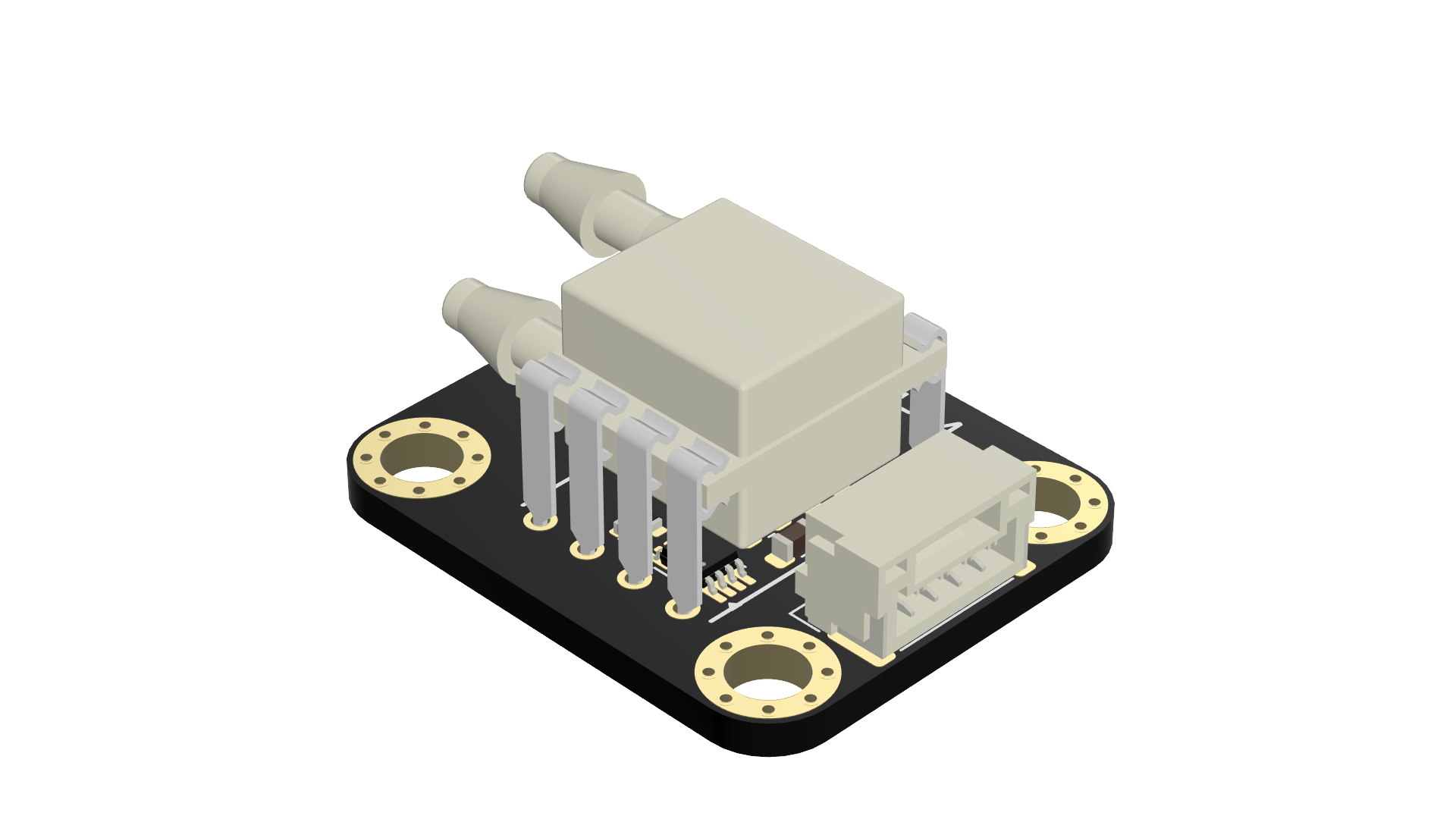
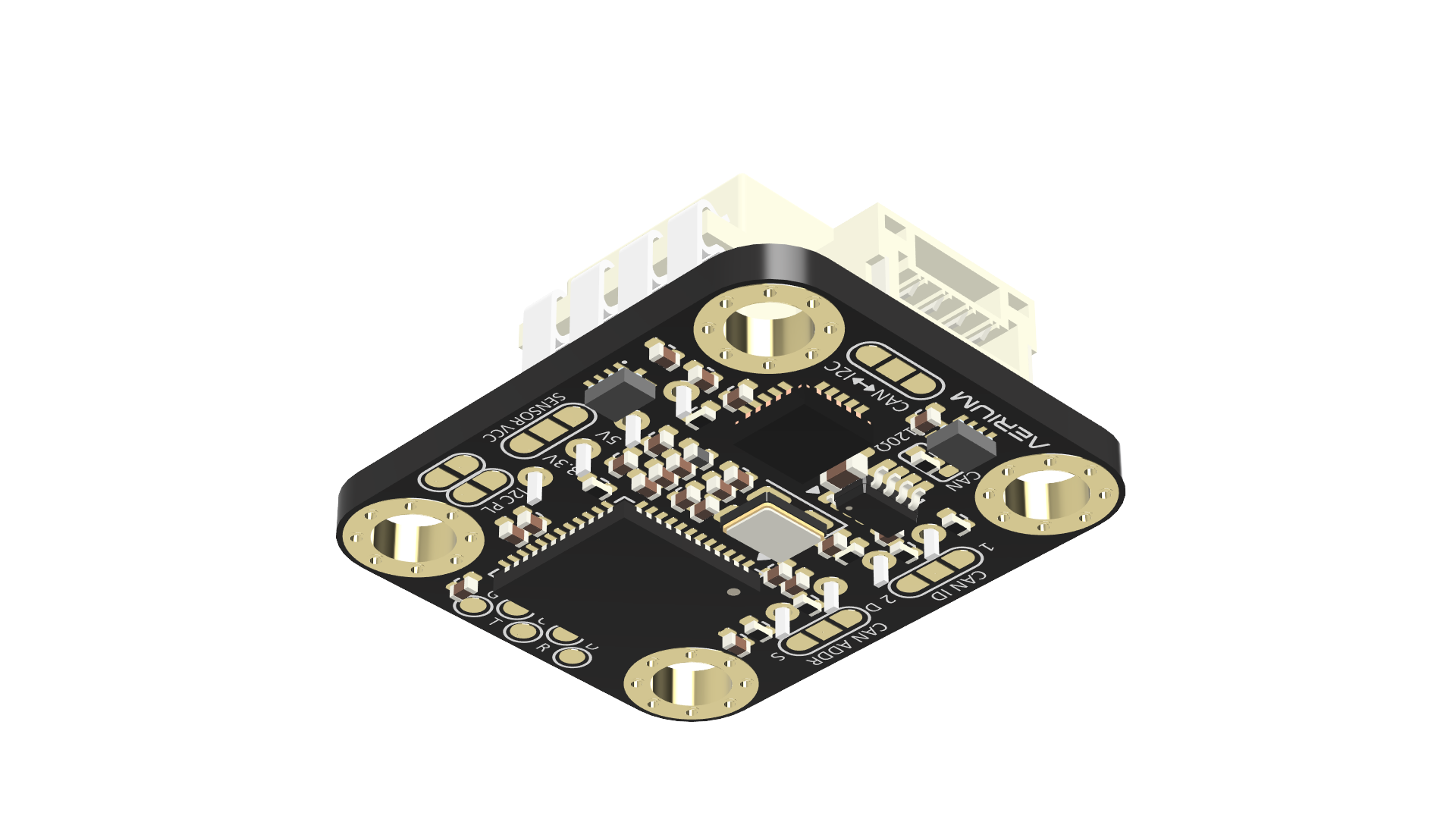
General
- Compact digital airspeed sensor for unmanned and embedded systems.
- Built around the 4525DO differential pressure sensor.
- Accurate, temperature-compensated airspeed measurements.
Compatibility
- PX4 flight controllers.
- ArduPilot flight controllers.
- Flight controllers with direct I2C airspeed sensor support.
- Flight controllers with UAVCAN airspeed sensor support.
Resources
Mechanical
- Dimensions: 24 mm × 20 mm
- Mounting holes: M3, spaced 18 mm × 14 mm
- Weight: ~8 g

Electrical
General
- Input voltage: 5 V
- Logic level: 3.3 V
Pinout
Main Connector
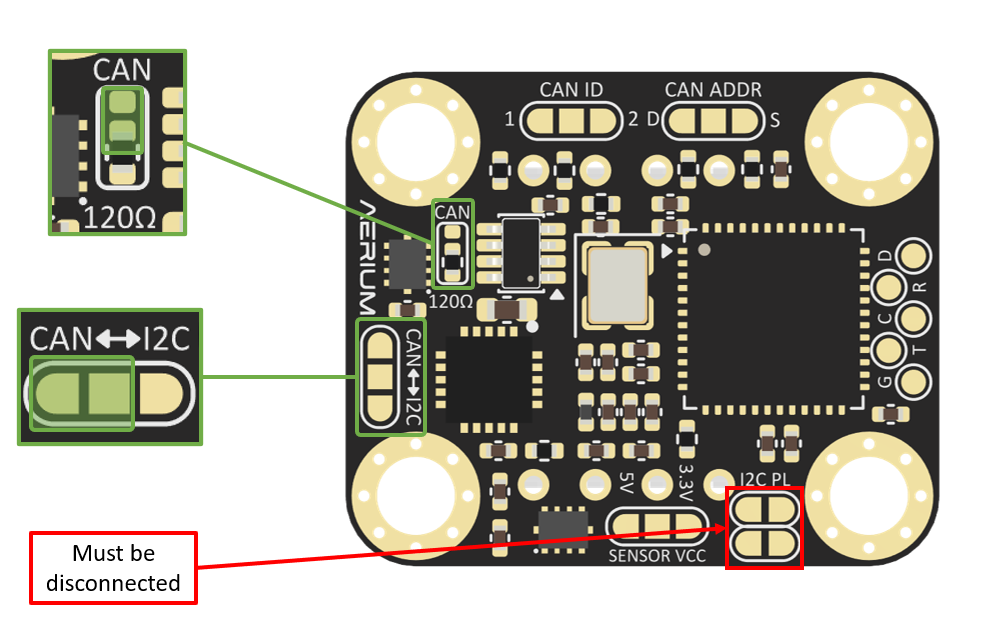
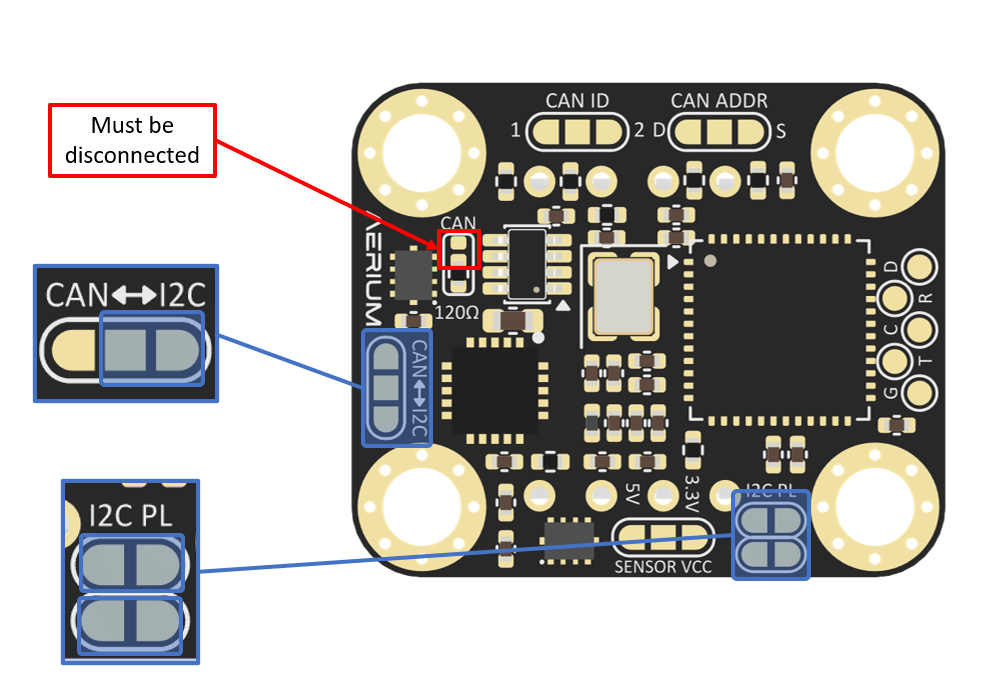
- The main connector features a flexible interface configuration.
- The configuration is set using solder jumpers. by default the board is set to CAN

-
Connector Definition
Type Part Number Part Name Board Connector SM04B-GHS-TB JST-GH Cable Connector GHR-04V-S JST-GH -
Connector Pinout
Pin Name 1 Power Output (5 V) 2 CAN_H (logic 3.3v) 3 CAN_L (logic 3.3v) 4 GND -
Solder Jumper configuration
-
Connector Definition
Type Part Number Part Name Board Connector SM04B-GHS-TB JST-GH Cable Connector GHR-04V-S JST-GH -
Connector Pinout
Pin Name 1 Power Output (5 V) 2 SCL - I2C clock (logic 3.3v) 3 SDA - I2C data (logic 3.3v) 4 Ground -
Solder Jumper configuration
Software
Configuration Steps
-
Autopilot Configuration
-
Address Configuration
- I2C
- the I2C address of the device is fixed by hardware.
- CAN
- The CAN address is 0 by default (auto assign by the autopilot)
- The address can be be set to manual/static using the following instructions
- PX4
- Connect the Laminar to the autopilot
- Open QGroundControl
- Open Main Menu -> Analyze tTools -> Mavlink Console
- Type in the console 'uavcan status' to get the device auto assigned address.
uavcan status - Type in the console:
uavcan param set <current device address> CANNODE_NODE_ID <desired device address> - reboot the device
- Type in the console 'uavcan status' to verify the device address.
uavcan status
- Ardupilot
- Use the following instructions - https://ardupilot.org/copter/docs/common-slcan-f7h7.html
- Using Mission Planner, set the CANNODE_NODE_ID parameter to the desired address
- reboot the device
- PX4
- I2C